![Stratsys-logo-deep-blue.png]](https://www.stratsys.com/hs-fs/hubfs/Stratsys%20Logos/Stratsys-logo-deep-blue.png?height=27&name=Stratsys-logo-deep-blue.png)
This article and the information it contains are intended for customers with product licenses. Published October 20, 2026.
Following the transition to the object window, we are continuing our work to modernize Stratsys and create a more consistent user experience.
The next step is to phase out classic views in June 2027. Going forward, the workspace will be the central place for planning, follow-up, overview, and analysis in Stratsys. This means that work currently carried out in these views will need to move to the workspace. The workspace has been available for approximately three years and is already widely used by around 70% of our customers.
The impact of this change will vary between customers. Many customers have already moved entirely to the workspace, some use it in selected products, and others have not yet adopted it to the same extent. We therefore want to provide a clearer picture now of what is changing, why it is changing, and how you can start preparing.
The workspace is the interface we will continue to develop. Instead of maintaining multiple older, parallel views, we are bringing more of your work together in a more modern and consistent part of the platform.
Content
- What is included
- Why we make the change
- How will this affect you and what you need to do
- Timeline and development
- FAQ
- About the workspace
What is included?
The following classic views will no longer be supported:
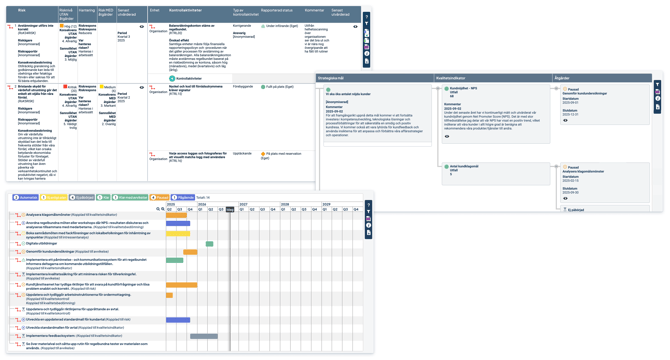
- Table tree and table, including classic risk matrix – replaced by the workspace
- Gantt – replaced by new timeline
- Drag and drop (red thread) – replaced by the workspace
- Risk matrix – replaced by the workspace and the matrix gadget
Other views
- Consolidation view - replaced by the workspace
- Analysis view - replaced by new features in the follow-up window
- Export views - replaced by the workspace
The older follow-up window will also gradually be replaced by follow-up in the object window. This will bring follow-up, editing, and relevant object information together in a single interface to a greater extent.
The workspace that will be used going forward: 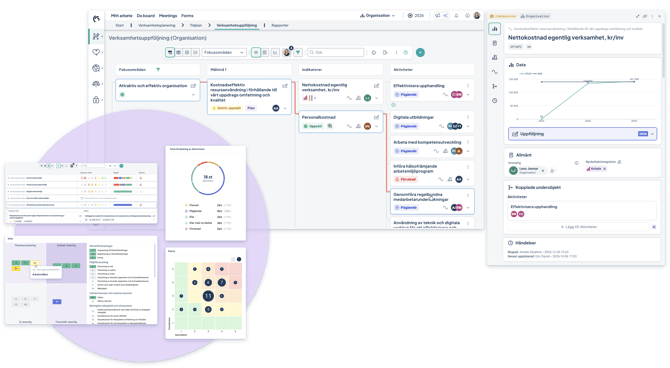
Examples of classic views being replaced:
Why are we making this change?
By phasing out classic interfaces, we can offer a modern, unified platform that is sustainable over the long term, with a more consistent user experience across the platform and its products.
Reducing the maintenance of older interfaces frees up time to develop more features that benefit more customers. It also allows us to make further improvements to the workspace that strengthen the user experience and support day-to-day work.
How will this affect you, and what do you need to do?
The impact on your organization depends on how much you currently use classic views and which tasks you use them for. Converting a classic view to the workspace is currently a manual process, with the exception noted below. You will therefore need to actively enable the workspace wherever classic views are used in your products. You can do this yourself by following the steps in the manual.
Alternatively, you can make the transition with help from one of our consultants. If you would like to do this, contact your Customer Success Manager (CSM) to discuss the next steps.
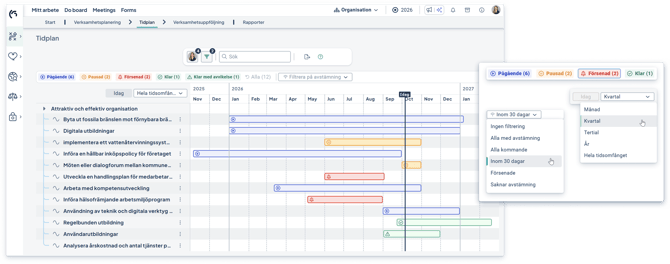
The exception is the new Timeline, which will automatically replace the classic Gantt view in week 47.
Not all features in classic views will be available, behave, or look the same in the workspace. In some cases, this means that familiar tasks will need to be carried out in a different way. At the same time, the workspace offers new features and capabilities that were not available in classic views, such as view gadgets and groupings that provide a clearer overview.
Moving to the workspace can also be a good opportunity to review which views you use, what you use them for, and how to make the best use of the workspace. We have seen examples of customers who have already made the transition and reduced the number of views in their operational plan by 70%.
The follow-up window
Phasing out the older follow-up window will bring follow-up, documentation, and relevant object information together in a single interface to a greater extent.
Key elements that are currently available only in the follow-up window will gradually be added to the new object window. The aim is to provide relevant information for follow-up and analysis when users need it.
During spring 2027, the object window will become the primary window for follow-up, with the option to switch back to the classic follow-up window. As an administrator, you will not need to enable anything or take any manual action. This will happen automatically.
Design mockup of follow-up in the object window 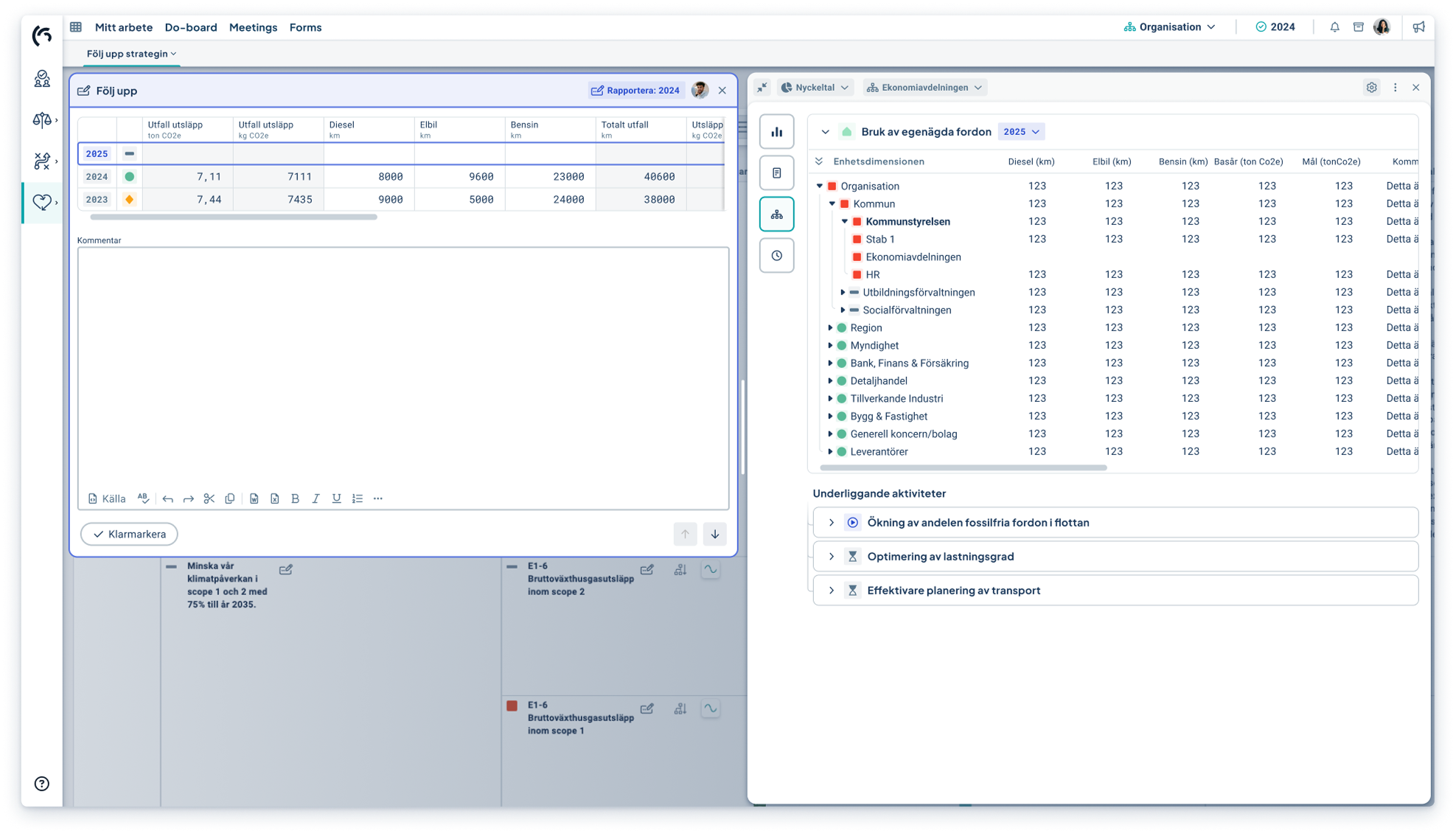
Timeline and development
Fall/winter 2026–2027
Major development work is planned to be in place during fall/winter 2026–2027. This will allow more of the work currently carried out in classic views to move to the workspace:
- New Timeline: released in October 2026.
- More efficient editing in table mode, addressing needs previously met by inline editing: released in September 2026.
- Improvements to list mode and new information for analysis, addressing needs previously met by the classic consolidation and analysis views: development is in progress.
- Export views: development will begin later this fall.
- Follow-up window: instructions, supporting information, and reporting from subordinate units will be displayed in the object window. Development will begin later this fall; see the design mockup above.
After this, we will continue making smaller, ongoing improvements until classic views are no longer supported. We will keep you informed about development progress and when features become available through our monthly product newsletters and the product blog on our website.
June 2027
Classic views and the older follow-up window will no longer be supported from June 2027.
FAQ
When will classic views no longer be supported?
Classic views will no longer be supported from June 2027. Until then, we will continue developing the workspace and sharing more guidance on the transition.
Do we need to switch to the workspace immediately?
You do not need to move all your work immediately, but we recommend that you start preparing now. The first step is to review which classic views you currently use and identify which parts of your work you can start moving to the workspace.
Will switching to the workspace affect the data in our products?
No. The change only affects how information is presented and worked with, not the content itself, meaning your objects and their data.
Will all features from classic views be available in the workspace?
No, not always in exactly the same way. Not all features available in classic views will be available or look exactly the same in the workspace. In some cases, tasks will be carried out in a new way. In others, new workspace features will address needs previously met by classic features.
Will any views switch over automatically?
The classic Gantt view will automatically switch to the new Timeline visualization during week 47. Other views must be converted manually to workspaces by following this guide.
What should we do if we are unsure how this affects us?
Contact your Customer Success Manager. They can help you understand how the change affects your setup and which steps are most relevant for your organization.
About the workspace
The workspace is the interface we will continue developing to provide a clearer overview, more efficient follow-up, and a more consistent user experience in Stratsys.
A more connected way of working
The workspace brings planning, follow-up, overview, and analysis together in a modern interface. This makes it easier to work with the same information from different perspectives without switching between multiple older views.
A clearer overview and faster insights
Visualizations, filtering, and search make it easier to monitor status, identify deviations, and focus on the information that matters most. This strengthens both analysis and your ability to make decisions based on up-to-date information.
Multiple display modes for different needs
The workspace includes several display modes that support different types of work. Thread mode supports planning and an overall perspective, table/overview mode supports follow-up and overview, and list mode provides a stronger focus on details and data from subordinate units.
A more consistent user experience
Data is presented more consistently across different parts of Stratsys. This makes navigation, onboarding, and daily use easier, as users encounter a more familiar interface regardless of which part of the platform they are working in.